
Your website is already a product video
The headline, the product and the proof are already on your homepage. Most product videos start from a blank page anyway. Why that’s backwards.
Sep 26, 2026
The exact video markup, file sizes, encoding settings and accessibility rules for a fast, silent, looping product video at the top of your homepage.

A product video at the top of a homepage has a bad reputation among people who care about page speed, and it mostly earned it. The classic version is a 40 MB file, a black box while it loads, a layout that jumps when it arrives, and a YouTube embed that pulls in a second website’s worth of scripts.
None of that is necessary. A 30 to 60 second product video can sit above the fold and cost less than most hero images did a few years ago. Here’s the setup, piece by piece.
Every attribute is there for a reason.
muted is what makes autoplay work at all. Browsers allow muted autoplay and block audible autoplay. [1] A video that tries to autoplay with sound usually doesn’t play.
autoplay starts playback without a click. On the homepage that’s the point: the video is part of the first screen, not a thing to be opened.
loop keeps it going for the visitor who’s still reading the headline when it ends.
playsinline stops iPhones from taking the video full screen. Without it, iOS requires full-screen playback. [2]
poster is the image shown until the first frame is ready. Without one, the visitor sees nothing, or a black box, while the file loads. [3]
width and height let the browser reserve the right amount of space before anything loads, so the page doesn’t jump when the video appears.
preload is only a hint, and autoplay overrides it. [3] It matters for videos that don’t autoplay, further down the page. For those, use preload="none" so nothing downloads until someone asks for it.
Encode to H.264 in an MP4 container. It plays everywhere, and for a short silent loop you don’t need anything newer.
The flags that matter:
-movflags +faststart moves the file’s index (the moov atom) to the front, so the browser can start playing before the whole file has downloaded. It’s off by default. [4]
-an drops the audio track. Your homepage video plays muted anyway, so an audio track is bytes nobody hears. It also removes any doubt about autoplay: media with no audio track is inaudible, and autoplay blocking doesn’t apply to it. [1]
-crf 23 is a quality target rather than a bitrate. Lower numbers mean higher quality and bigger files. Try a few values and look at the result on a real screen.
-pix_fmt yuv420p keeps the file playable in every browser and on every phone.
How big should it be? For reference, YouTube recommends uploading 1080p video at 8 Mbps at 30 frames per second, or 12 Mbps at 60. [5] That’s an upload spec, for a platform that re-encodes everything. For delivery on your own site you can go far lower. Our six example films are 1080p at 60 frames per second, 32 to 37 seconds long, and weigh between 4.5 and 9.6 MB each, which works out to roughly 1 to 2 Mbps. A smaller version for small containers goes lower still: the 540p cuts of our Attio example on our homepage are about 0.3 MB for 30 seconds.
If the video only ever appears at half width, export it at half width. Nobody can see pixels that the layout scales away.
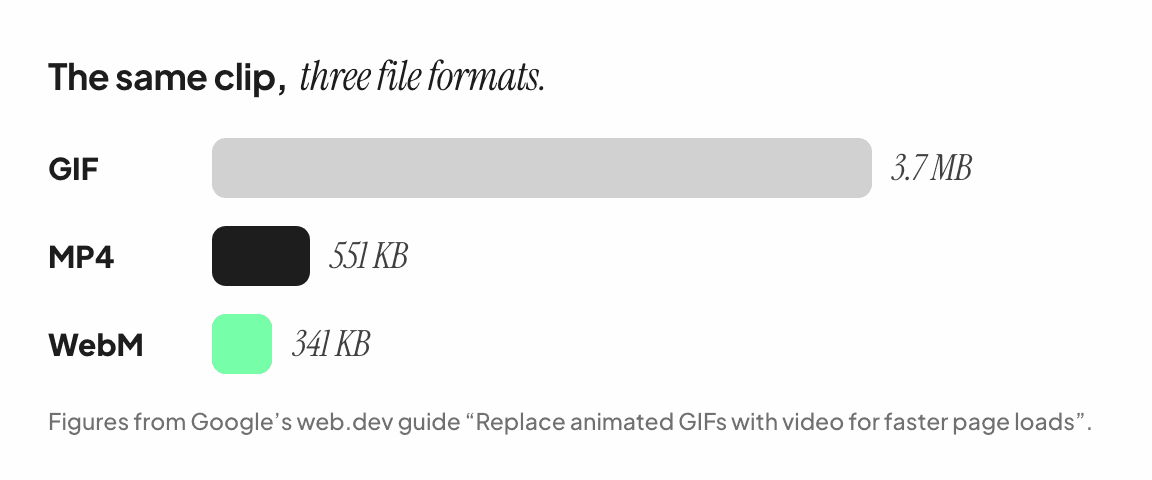
If you’re tempted to use an animated GIF because it “just works”, don’t. Google’s web.dev guide on the subject shows a 3.7 MB GIF becoming a 551 KB MP4 and a 341 KB WebM. [6] A GIF is the largest and worst-looking way to put motion on a page.
Google’s Largest Contentful Paint metric counts video elements. The time used is whichever comes first: the poster image loading or the first frame being shown. [7] A large hero video is likely to be your page’s LCP element, so the poster is effectively your hero image.
Treat it that way. Export a real frame from the film, ideally one with your headline visible, compress it (WebP or a well-compressed JPEG), and make sure it’s the same aspect ratio as the video so nothing shifts when playback starts.
A homepage often has more than one video. The ones further down shouldn’t download until the visitor gets near them. Give them preload="none", leave off autoplay, and mark them:
Then start each one when it scrolls into view, and pause it when it leaves:
Pausing videos that scroll out of view also means only the one the visitor is looking at is decoding, which matters on phones.
Two rules apply to every autoplaying video.
Give people a way to pause it. WCAG 2.2, success criterion 2.2.2, requires a way to pause, stop or hide moving content that starts automatically, lasts more than five seconds and sits alongside other content. [8] A looping hero video meets all three conditions. A small pause button over the video satisfies it.
Respect reduced motion. Some visitors turn on a system setting to reduce motion. [9] Browsers expose it as the prefers-reduced-motion media query, and the script above already checks it for the lazy videos. For the hero, stop the autoplay and go back to the poster:
Serve the file from your own site or a CDN, as a plain video file. A YouTube or Vimeo embed brings its own player, scripts, branding and suggested videos, and none of it is under your control. Embeds are fine further down a page or on a dedicated video page. At the top of the homepage, you want a file.
One surprise: Google generally won’t index a video that isn’t the main content of its page. Search Console now reports these as “Video isn’t on a watch page,” and says only videos on a watch page are eligible for indexing. [10] A homepage hero video is decoration as far as video search is concerned.
That’s fine, because its job is to help the page convert, not to rank. If you want the film to appear in video results too, give it its own page where the video is the main thing, with a title, a description and VideoObject structured data.
autoplay muted loop playsinline, with a poster and explicit width and height.
H.264 MP4, -movflags +faststart, no audio track.
Exported at the size it’s displayed, not larger.
A compressed poster that shows the headline, at the same aspect ratio as the video.
Videos below the fold use preload="none" and play when scrolled into view.
A pause control, and the poster instead of motion for prefers-reduced-motion.
Hosted as a file on your own site or CDN, not embedded.
A separate watch page if you want the film in video search.
None of this is exotic, and all of it together takes an afternoon. The result is a homepage that shows your product moving in the first second, and loads about as fast as one that doesn’t.
MDN, “Autoplay guide for media and Web Audio APIs”; Chrome for Developers, “Autoplay policy in Chrome”.
WebKit, “New video Policies for iOS” (2016).
MDN, the video element, on poster and preload.
FFmpeg documentation, MOV/MP4 muxer options, faststart.
YouTube Help, recommended upload encoding settings.
web.dev, “Replace animated GIFs with video for faster page loads”.
web.dev, “Largest Contentful Paint (LCP)”, “What elements are considered?”
MDN, prefers-reduced-motion.
Google Search Console Help, Video indexing report; Google Search Central, “Video is the main content” (December 2023).

